theonlyD800inthehameau
Photography by theonlydeadheadinthehameau
Before & After: St Mary’s Church, Beverley
Posted on January 29, 2016
Another ecclesiastical subject this week. However, this time it’s an interior – of the nave and high altar of St Mary’s church in Beverley. A lot of people are aware that Beverley has a Minster (basically, a cathedral without a bishop) and you could be forgiven for assuming that this was it, given its monumental scale and rich decoration. However, it’s ‘just’ a Parish Church.
Before
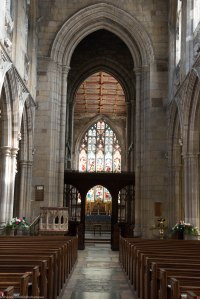
This photograph looks down the main aisle of the church to the altar beyond the rood screen. Apart from the fact that it’s a bit wonky, it displays one of the most common ‘technical’ problems with photographing church interiors: the external light source, particularly when shining through a stained glass window.
After

The first thing – as ever – was to straighten and crop the image. The pews at the bottom of the original weren’t bringing much to the party and the columns on each side provided sufficient in the way of leading lines.
The bright sun shining through the windows high up on the right meant that some of the stonework of the columns on the left was blown out, while the ceiling between the two arches seen in the original was very dark. The latter I dealt with by the simple means of cropping it out (which also took care of the windows) and I applied a graduated filter effect on the left side of the image to claw back some of the detail that was lost in the original.
The second source of bright light was through the stained glass. I reduced the glare by moving the Highlights and Whites sliders all the way over to the left.
The image still had a ‘cold’ overall cast, so I boosted both Clarity and Vibrance, which gave a much warmer tone.
The key colours in the image are obviously blue, orange and yellow. Reducing the Luminance and boosting Saturation (a little) made these ‘pop’ a bit more as well as bringing out still further detail, especially in the painted ceiling.
Before & After: Cathedral of San Marco, Venice
Posted on January 22, 2016
Sometimes you can’t get exactly the shot you want and need to rely on post-processing to realise your original idea.
Before
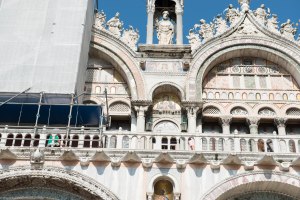
This was taken in Saint Mark’s Square in Venice and is of the side of the Cathedral. It’s always crowded there, so for every kind of reason it makes no sense to be packing a long zoom lens. I was interested in the detail of the recess in the centre of the image, but this was the closest that my 24-70mm zoom lens could get.
After
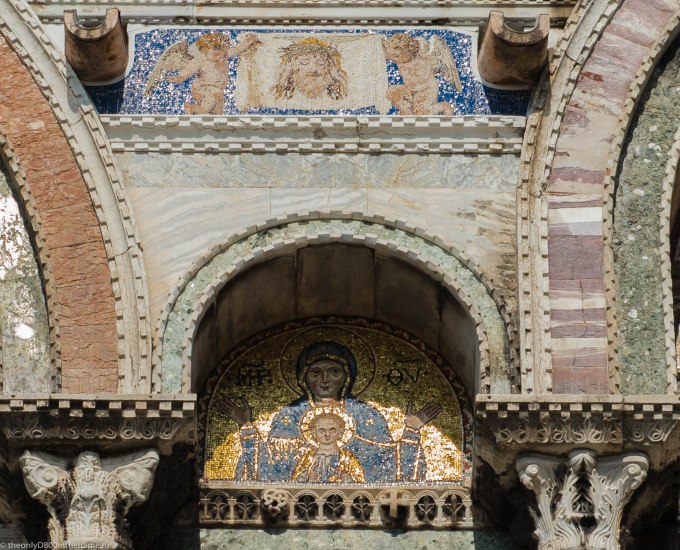
The first actions to take were to straighten the image and crop out all distractions – notably the scaffolding. It also allowed for an aesthetically attractive symmetry in the final image.
As can be seen from the shadows in the original image, the sun was shining very brightly and it was close to noon, so the whole image looks ‘bleached’. Fiddling with the overall exposure didn’t produce any helpful results, but taking down the Highlights, Shadows and Whites sliders brought out a lot more subtle detail in the stonework and also had some positive impact on the colours.
However, I resorted to the individual colour adjustments to reach this final version. I boosted the Saturation of the three principal colours – orange, yellow and blue – but by trial and error I found that a greater impact was made by adjusting the Luminance – increasing orange and yellow, reducing blue.
Before & After: Petra
Posted on January 15, 2016
Petra is arguably one of the most photographed places on Earth (right up there with Venice) and I’ve posted a number of the pictures I took there on this blog. And here’s another, which I’ve used for this latest exercise in ‘before and after’.
Before

The original is a pretty bog-standatd shot of part of the famous al-Khazneh (Treasury) building which is the first thing you see when you enter Petra. As it stands it’s pretty ho-hum – the photo, not the Treasury – but I thought it might be possible to make something a little more arresting with some post-processing.
After

The first thing to do was straighten the image. After that, I cropped out the grey rock on the left, to focus on the juxtaposition of the angular and circular features (which I thought contrasted well with each other).
The original image seemed to me to be a little over-exposed, so I adjusted for that in the whole image. A particular problem area was the dome on top of the circular feature. I brought out some additional detail in that by adding a graduated filter on the right hand side of the image – an innovation for me: I knew Lightroom offered such a thing but had never worked out how to use it. I got it eventually through trial and error.
After that, it was simply a matter of adding some Punch and Sharpening to give the image a bit more ‘presence’. Overall, I think the editing has made for an improvement.
Before & After: Sunset
Posted on January 8, 2016
Sunsets can be highly dramatic subjects, but they can also be the devil’s own work to get right, because the sun itself is almost inevitably over-exposed and leaves everything else devoid of detail.
Before
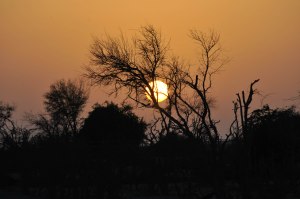
This photograph was taken at dusk, looking over the giraffe enclosure of the nature reserve on Sir Bani Yas island. Capturing it was pretty much a case of point and click – the sun sets very quickly so close to the tropics. As it stands, it’s not a bad image, but I thought it would be interesting to see what could be done in the way of post-processing to improve it.
After

- Although it works reasonably well with the sun slap bang in the middle of the picture, I cropped so as to put it on one of the classic ‘rule of thirds’ intersections.
- In the process, this also eliminated much of the dark foreground, which didn’t contain anything of interest. It also brings to the fore the bare silhouetted branches that are the really interesting element of the image.
- Hovering the magnifying glass in Lightroom’s Develop mode over the brightest part of the sun’s disc confirmed that it was completely blown out, with all three of the Red, Green and Blue readings at 100%, or as near as makes no difference. Moving the Whites slider all the way to -100 actually reduced this figure to around 75%, which is at least some improvement.
- I also played around a bit with the Orange channel in the colour palette top provide a warmer overall cast.
By the way, did anybody else spot the bird sitting on the branch (at about 7 o’clock if the sun was a clockface)? I didn’t see it at all until I’d completed the editing.
One Photo Focus: January 2016
Posted on January 1, 2016
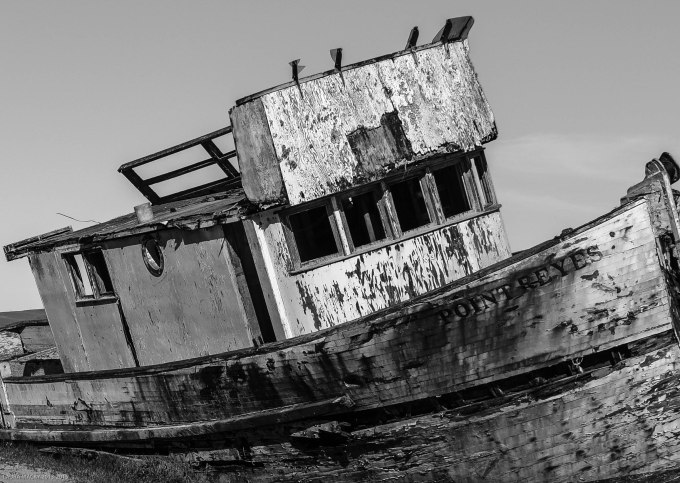
For the January One Photo Focus we were given this image by Laura Macky of Laura Macky Photography

It’s an excellent photograph as it stands: a well-composed image of an interesting subject. There seemed little to be gained from tweaking details like saturation; that would be more likely to detract than to enhance. So I decided to take just a part of the whole and turn it into something different.
The angle at which the boat is beached provided some interesting diagonals in the superstructure, so I cropped tightly into the subject itself. Although I like the colours in the original, I felt that it would also work well in black and white. A bit of work on the sliders brought out more detail in the peeling paintwork, giving it a more ‘weatherbeaten’ look.
Lessons learnt
Posted on December 31, 2015
This week, as part of her ongoing Compose Yourself Challenge, Cee Neuner has offered up five of her own photographs for participants to offer a critique and, if they choose, edit themselves. I like to think that I can take it as well as dish it out, so although it seems a little churlish to ‘have a go’ at the work of someone who does so much for the photoblogging community, I’m going to take up the offer. It’s at times like this it’s important to remember that there’s all the difference between critique and criticism.
As Cee points out, all five of these images are straight out of the camera, with no post-processing whatsoever. In my view, there’s something that can be done with three of them, although with ‘Coloured Chairs’ and ‘Taxi Cab’ I’d just be inclined to press ‘delete’ and move on. Perhaps they illustrate Cee’s dictum that you should never take just one photo.
As for the others, I’ve done my own editing on them and present the before and after side by side, with a few notes on what I did and why.
Marina


- Photography 101: Horizons should be horizontal
- The setting sun is blown out, and the rest of the image is underexposed. I cropped out the left hand side to eliminate the glare and also whatever it is at top left (it surely isn’t the subject).
- Moving around the sliders lightened the remaining image, bringing out more detail in the foreground as well as enhancing the colour of the sky.
Red Umbrella


Anything red is pretty much guaranteed to make a good subject (as well as the classic foreground object), but in the original the umbrella is a bit lost somewhere in the middle, so I cropped it to put the umbrellas in the left third of the image, and also bring out the diagonals of the wall and pavement (sorry, ‘sidewalk’). A bit of punch from boosting Clarity and Vibrance and I think you have an interesting image.
Doors


- This is a fascinating door, although I think the image would work better if it was taken from directly in front (a problem I always have) as it’s impossible (at least within my limited abilities) to get all the verticals in the image properly vertical. I’ve straightened it as far as I could.
- I also cropped to remove the distractions on the left side.
- The picture was obviously taken in bright sunlight so looks a little washed out. I adjusted exposure by -1 stop and played around with the tone curve to increase contrast and detail, and also enhance the colour of the door.
Before & After: Boat
Posted on December 18, 2015
My little exercise in post-processing this week was actually inspired by the December One Photo Focus, which was published last Friday. My own humble effort can be found here, but I was particularly interested by some of the other participants’ use of the more sophisticated and creative tools available in Photoshop. Apart from anything else, it made me more determined than ever to try to get to grips properly with this extraordinarily sophisticated (downright clever) program.
Original image

This photograph was taken at the famous lily pond in Claude Monet’s garden at Giverny, in Normandy. The day was very overcast and drizzly, so the light was very flat, the water looks very drab and even the reflections are rather dull. The whole thing obviously needs some work.
Lightroom

Some basic editing in Lightroom helped to cheer up the image. Cropping made the boat the centre of attention and some work with the sliders brought out more detail. Increasing the Green Saturation helped to overcome the overall flatness, and moving up the Clarity and Vibrance gave the image more punch. Without being anything special, it’s a lot better than it was.
Photoshop
Then it occurred to me that, since the picture was taken in a painter’s garden, why not make it look more like a painting? And since Monet was, of course, an Impressionist, why not try to give it something of an impressionist feel?
So I used the Paint Daub effect in Photoshop and came up with the image below. I could have made the effect more extreme, but – if I’m honest – chickened out. Anyway, it’s far removed from the original image and, I think, a lot more interesting.

Before & After: Cradle
Posted on December 11, 2015
This photograph was taken in less than ideal conditions: in a local stately home during an Open Day, as I shuffled – along with many other people – past the open doorway of a nursery. With no time to frame a shot, or to do much more than simply record what was on view, it would obviously be necessary to make the best of whatever I was able to get at a later stage.
Original Image

Apart from the clutter, the key challenge was obviously to deal with the very strong backlight from the sun streaming through the uncurtained window.
Edited Version
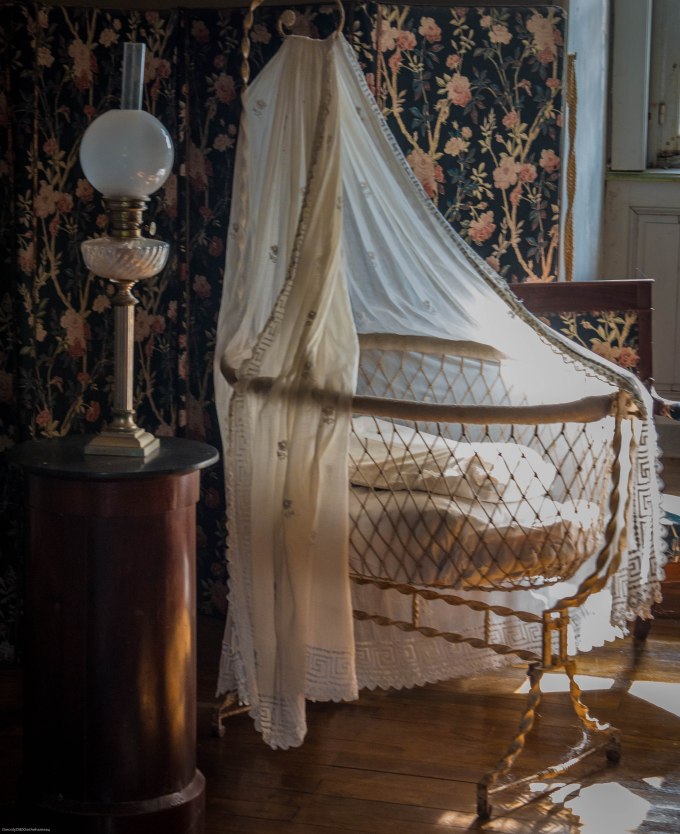
The focal point is clearly the cradle, so the crop was pretty obvious. The lamp on the table gives a sense of scale and also balance and there wasn’t much that could be done about the window apart from cut out as much as possible.
The cradle is interesting in itself, not only for its antiquity but also the intricate metalwork and the delicate lace, the details of which are ‘blown out’ in the original by the sunlight. I offset this to the best of my ability by:
- Taking down both ‘Highlights’ and ‘Whites’ to -100 brought much of this back
- Boosting ‘Clarity’ to +55 brought back some more of the lost detail, while ramping up both ‘Vibrance’ and ‘Saturation’, gave a more solid feel to the bed-linen and the metalwork.
- I boosted both the Saturation and Luminance of the individual Yellow slider, which also helped to offset the ‘blinding’ effect of the sunlight.
One Photo Focus: December 2015
Posted on December 4, 2015
My second contribution to the After-Before Friday Forum coincides with the monthly One Photo Focus. This requires all participants to edit the same image, which in this case has been provided by Julie Powell at Julie Powell Photography. Here is the original:

…and here is my edited version:

Herewith my rationale for the changes I made:
- Cropped for balance, to put the flower itself at the centre of the picture
- Darkened the background, to remove as much as possible that could distract from the subject. I also finished this off with a Lightroom pre-set Light Vignette
- Adjusted the tone curve to soften the white in the petals (Clarity -24) and also bring out detail in the water drops on the right-hand side (Vibrance +30)
- Most radically, I changed the colour at the centre of the image as the original yellow seemed to me to be rather ‘washed-out’. I simply took down the Yellow Hue adjuster to -100, which produced this – I think – more attractive salmon-pink tone
- Cloned over the green ‘blob’ just to the left of centre in the flower, which was another distraction
Before & After: Oryx
Posted on November 27, 2015
For me, post-processing is equally as important as capturing the image in the first place, and some judicious editing can elevate a mundane photo into something that’s of greater aesthetic appeal and so, hopefully, of at least passing interest.
I’ve decided to begin participating in the weekly After Before Forum, hosted by Aperture64. This entails posting two versions of the same photograph: the ‘before‘, as shot, and the ‘after‘, once that original has been edited. Here’s my first contribution.
The Original Image

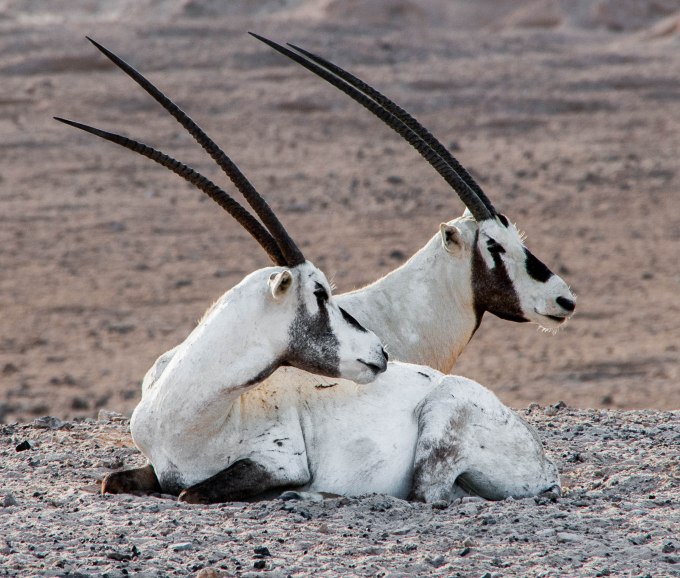
This was taken on the Sir Bani Yas Island nature reserve in the United Arab Emirates and is of a pair of Arabian oryx, a previously endangered species that now roams freely on Sir Bani Yas, thanks to some major conservation efforts. What lifts this particular shot out of the ordinary, for me, is the matching ‘pose’ of the two animals.
The Editing
For editing I principally use Lightroom. I have a Creative Cloud subscription, which also gives me access to Photoshop, although I use this comparatively rarely (I keep telling myself that one day I’ll get to grips properly with Photoshop, but it hasn’t happened yet).
I always begin the editing process with some straightening, when necessary. This eliminates what can be an irritating distraction (especially in landscapes and – even more so – seascapes). This particular image has been very slightly levelled out.
After this comes cropping. The purpose of cropping is to remove, as much as possible, anything that detracts from the actual subject of the photograph. There was a case for leaving the oryx in a more expansive landscape, but having taken the view that the pose was the real subject, I decided on a closer crop with clear focus on the animals themselves.
Only when you’re happy with the composition of the image is there much point, in my view, in trying to get it to look as good as possible.
The enhancement of the image is very largely a process of trial and error. The camera’s own settings – other than in special circumstances I use Aperture-Priority mode – almost always deliver a correct exposure, so it’s really a matter of working through the Menu items in Lightroom’s Development mode.
Of these the first is the most important, so I spend the most time on playing around with the various Tone sliders – Highlights, Shadows, Whites and Blacks – while keeping one eye on the histogram and the other on the image itself (no mean trick if, like me, you’re basically one-eyed). It’s fascinating to see how much more detail can be coaxed out of a RAW file (I always shoot in RAW) with these adjustments.
Occasionally, this process throws up some jarring colour casts, which I’ll correct using the individual ‘Color’ sliders. As it happens, there was an odd blue tinge to the white fur, which I eliminated by taking down the Blue saturation. Since there’s no real blue in the image – none that ought to be there, at any rate – this doesn’t detract from anything else.
Once I’m happy with the result of all this, I move on to the Presence part of the Menu (Clarity, Vibrance and Saturation). To be perfectly honest, I find that the ‘Punch’ preset in Lightroom does a pretty good job. That’s +30 on Clarity and +25 on Vibrance. Of course, it can be tweaked further from there.
Likewise, since I’m not sure I really understand Sharpening, I tend to defer to Lightroom’s ‘Sharpen’ pre-sets. Finally, I might experiment with the Noise Reduction sliders, but noise isn’t usually a problem in even halfway decent light conditions. I think it’s important to remember that even though you have a lot of adjustment tools at your disposal, you don’t have to use them all, just for the sake of it.
The Final Image

Top Posts & Pages


 theonlyD800inthehameau